
How to connect the Databricks AI Dev Kit to Cursor - Part 2
In my previous post, we explored what the Databricks team has built to help developers interact with the platform in a completely new way. Instead of just writing code, we can now instruct an AI agent to understand the Databricks environment and act like a data engineer or analyst performing tasks, exploring data, and helping us build solutions directly within the workspace.
In this post, let’s connect the databricks AI dev kit from cursor and ask it to do part of my daily job, probably :P
Pre-requisites:
Python 3.10 +
Package Manager - uv
Cursor installed - Free version still works
Databricks Workspace
Databricks CLI authentication set up or a named profile for Authentication
How to verify if you can authenticate
C:\Users\mail2\Swathi\Desktop>databricks auth profiles

Name                  Host                                                 Valid
DEFAULT               https://adb-7405615623516536.16.azuredatabricks.net  YES
If the profile shows Valid = YES, you are good to go.
Step 1: Install ai-dev-kit
I shall create a directory in my local folder and install the dev kit at the project level
Since I’m using Windows, I ran the following command in PowerShell.
When the installer runs, it will ask you:
Which tool do you want to use (choose Cursor)
Which Databricks profile to connect to
The installation scope (choose Project)
The installer will also show you the MCP server runtime location.
PS C:\Users\mail2\Swathi\Desktop> irm https://raw.githubusercontent.com/databricks-solutions/ai-dev-kit/main/install.ps1 | iex
Step 2: Launch Cursor
Either you can launch Cursor from PowerShell by simply writing Cursor, or open Cursor on your desktop.
Step 3: Point Cursor to the desktop/local folder you created
From Projects → Open Projects → Connect to the folder on your local machine
Step 4: Authentication
Once you have launched everything, it will ask you for your workspace authentication. The cursor can now do everything you can do with your name.
Step 5: Verify the connections

After the dev kit is installed, you can see Tools and Skills along with an mcp.json file. From Cursor, go to Settings> Tools & MCP, then click mcp.json; you will see the Databricks MCP. If it’s not the case, edit the JSON file from the dev kit. You should now be seeing something like this
That’s really it!
I have asked it to create a schema in the workspace env with this prompt
Create a schema called "ai_dev_sm_free_edition" using SQL.
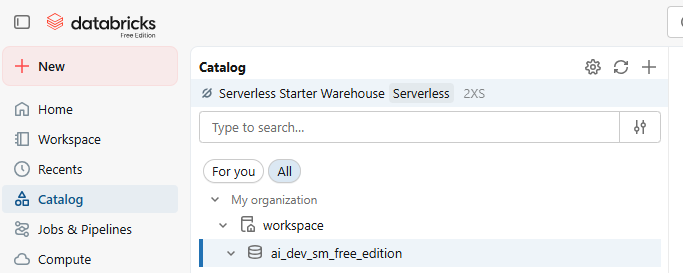
It spun up the serverless compute for me and created the schema I mentioned. You can see that it would have been created with your name because you have provided the authentication.
Next, I asked the agent:
@c:\Sample - Superstore.csv\Sample - Superstore.csv can you use this file and create a table called superstore in workspace.ai_dev_sm_free_edition
Look at the video below,
The agent:
Thought through the problem
Asked a few clarifying questions
Created the required objects inside the Databricks workspace
It even reasoned through the best implementation steps:
Create a volume
Upload the data
Load it into a Delta table
Now that the table existed, I asked the agent to:
Create 5 useful metric views
Generate a dashboard
Attach Genie
Publish the dashboard
And it actually started doing it.
Unfortunately… I ran out of credits before it could fully finish 😅
But look at the beautiful dashboard it created all under a few seconds
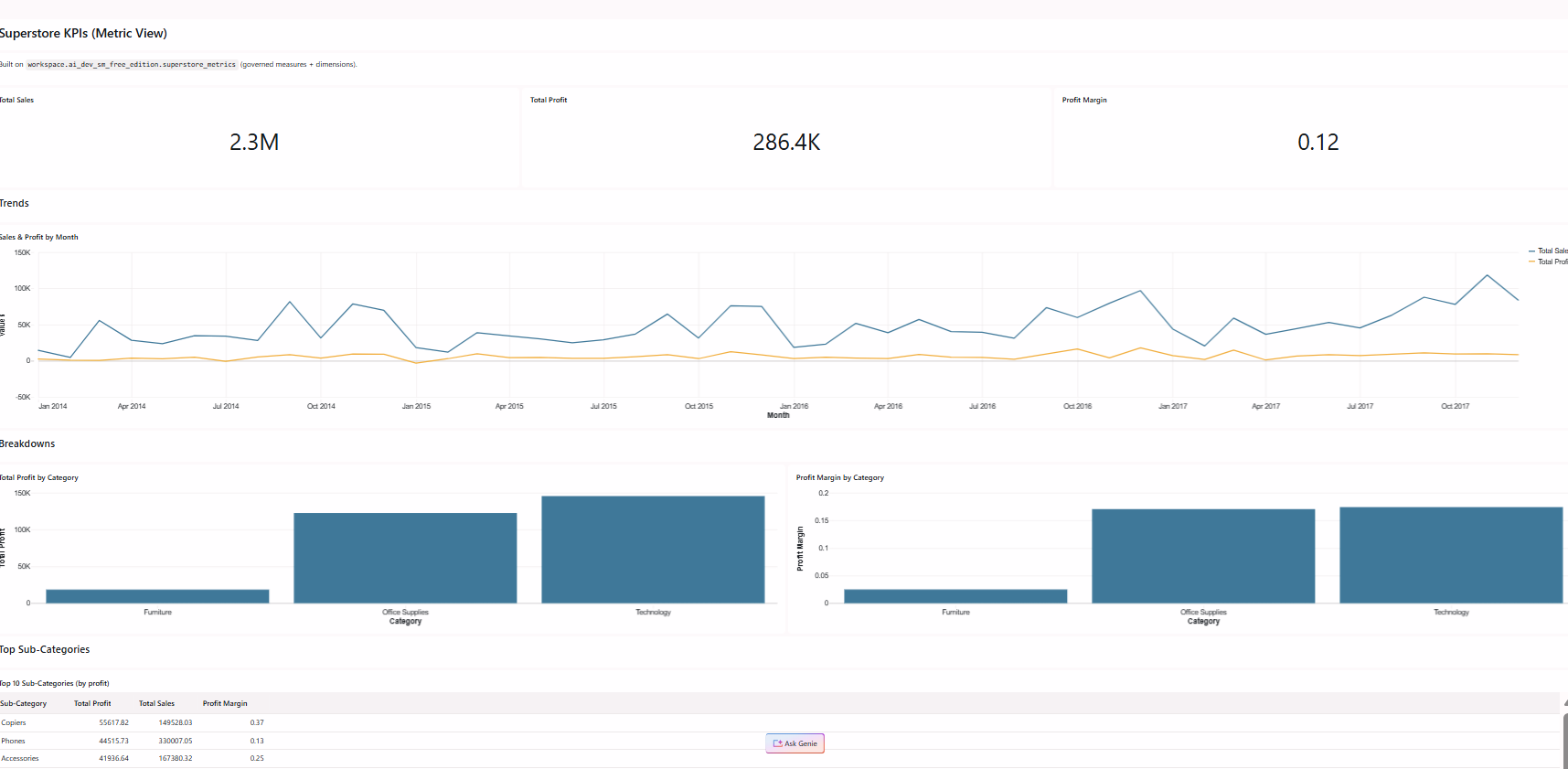
Dashboard by an AI agent on Databricks
Wrapping Up:
What I found most interesting about this experiment is how quickly the interaction model shifts from writing code to simply describing what we want done. With the Databricks AI Dev Kit connected to Cursor, the agent can understand the workspace, spin up compute, create schemas, load data, and even start building dashboards, all by following natural language prompts with a governance layer on top of it.
The kit currently exposes dozens of tools and skills, which means the agent can potentially handle many of the tasks we perform daily as data engineers or analysts. It clearly shows a glimpse of how development workflows might evolve. Instead of manually executing every step, we may increasingly work alongside intelligent agents that understand the platform and help us move from idea to implementation much faster.
Kudos to the Future Ways of Working. Thanks for following along, and see you in the next post. Until then, #Happy Learning!!
